
Every child in KidsFocus gets their own profile — their own tasks, Stars, streaks and rewards. You manage everything from your Parent Dashboard; they get a colourful, simple view that's all theirs.
The steps
-
Sign in at kidsfocus.org. Use Google, Apple, or your email — we'll send a 6-digit login code, no password needed.
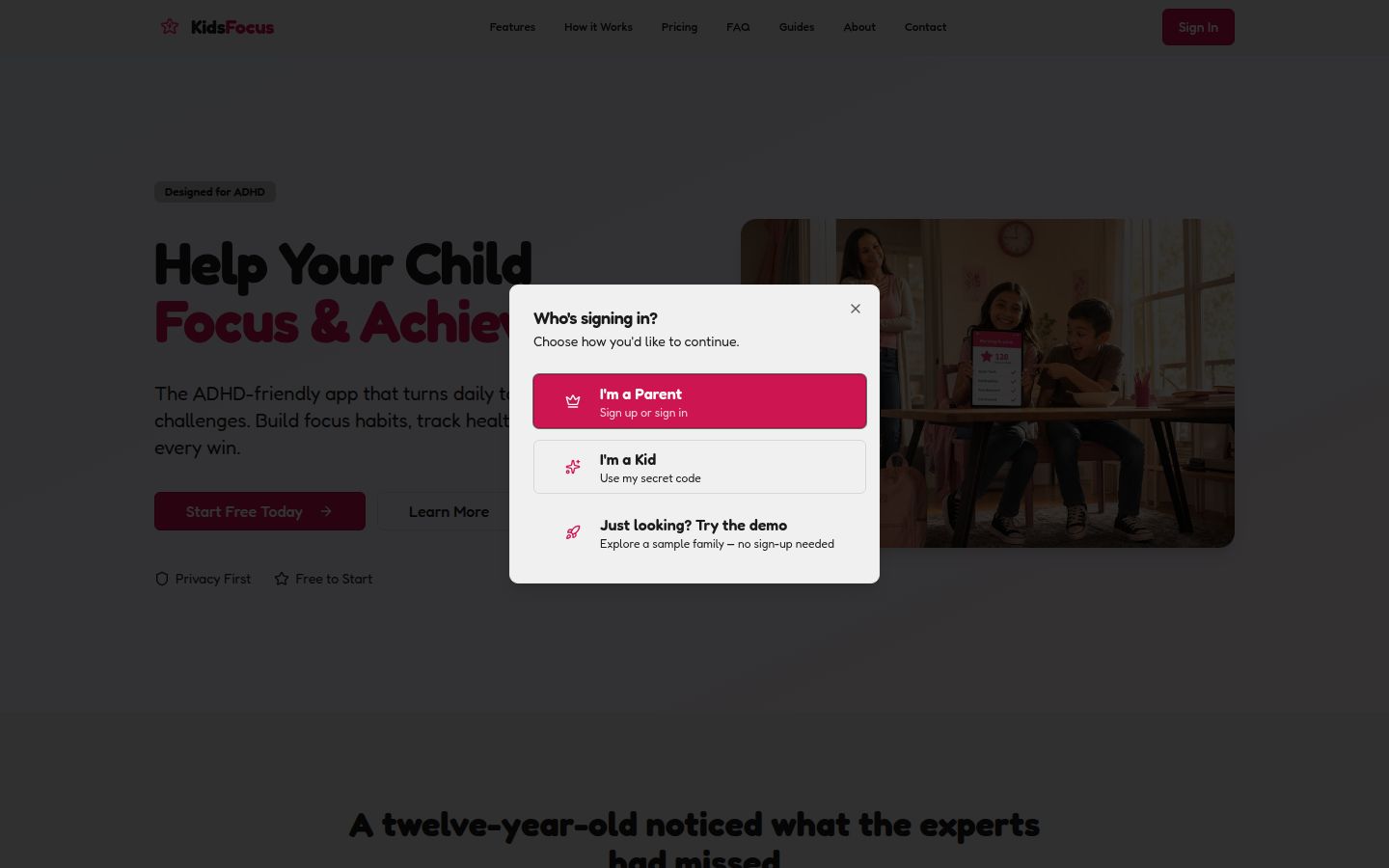
One tap to sign in — Google, Apple, or a 6-digit code sent to your email. -
You'll land on the profile screen. This shows your Parent Dashboard card at the top and every child profile below it.
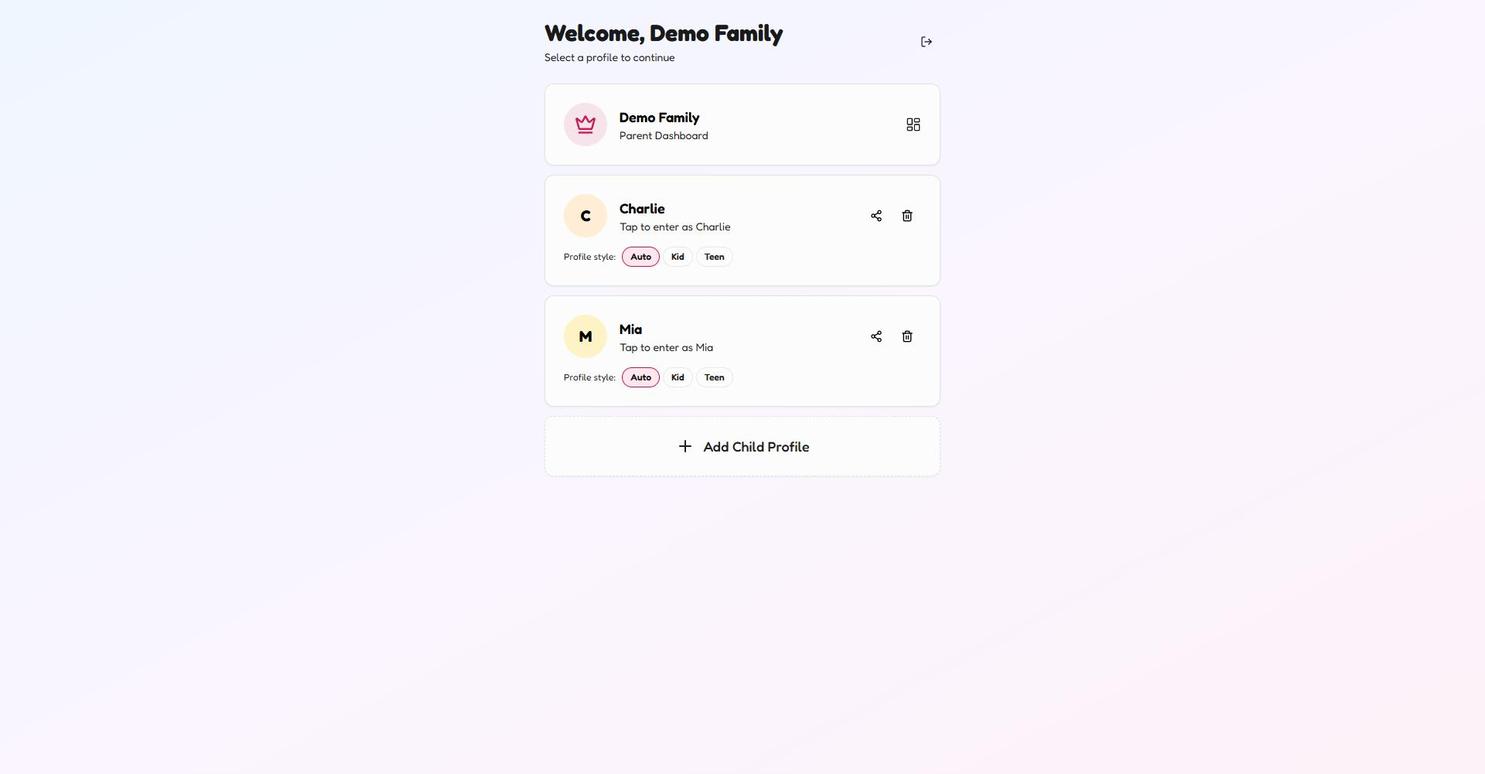
Your home base: Parent Dashboard up top, a card per child below. -
Tap + Add Child Profile. The New Child Profile form opens right on the profile screen. Enter your child's first name — that's the only detail you need.
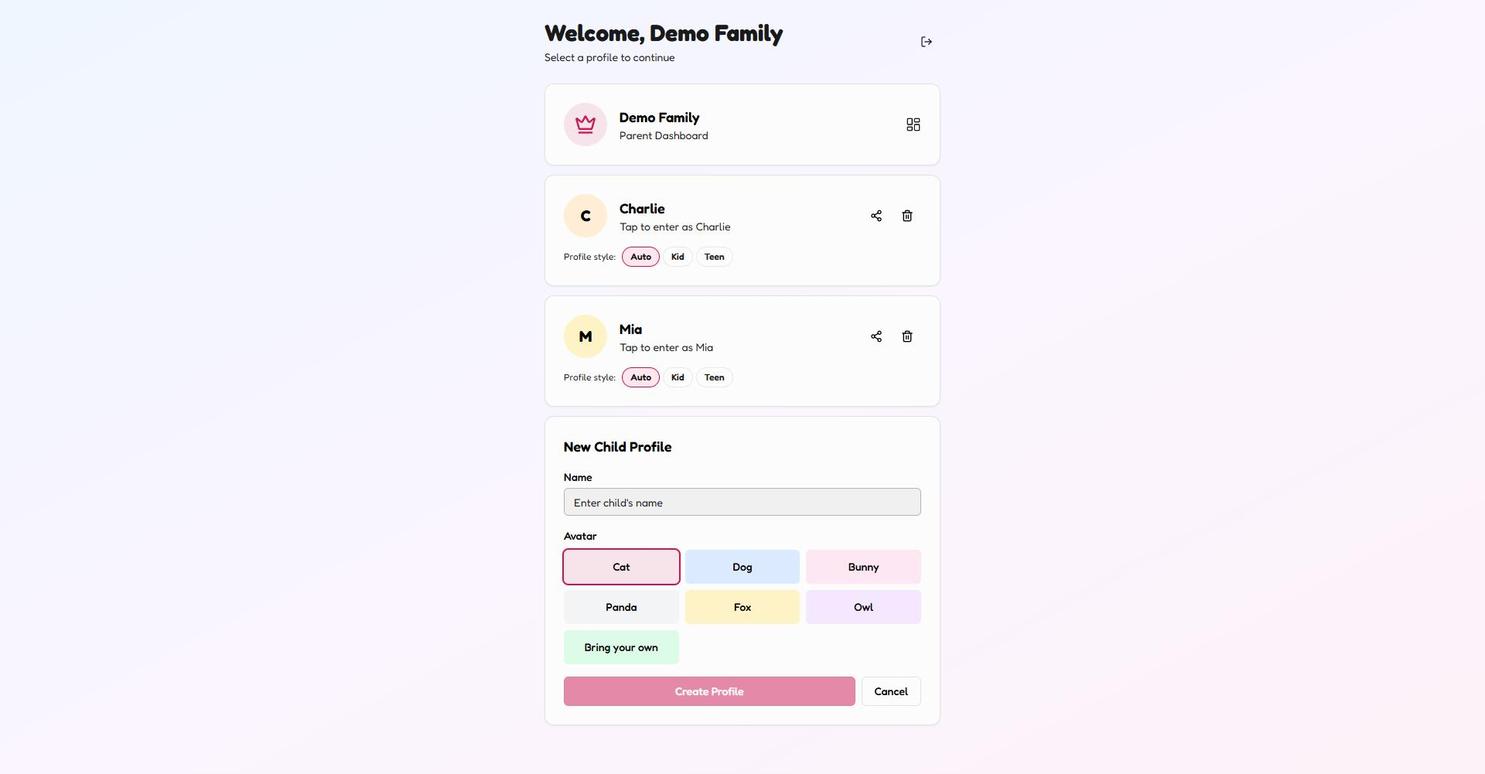
The form opens in place — a first name is all it asks for. -
Pick an avatar — together. Cat, Dog, Bunny, Panda, Fox or Owl… or tap Bring your own. This 30-second choice is what turns "Mum's app" into "my app".
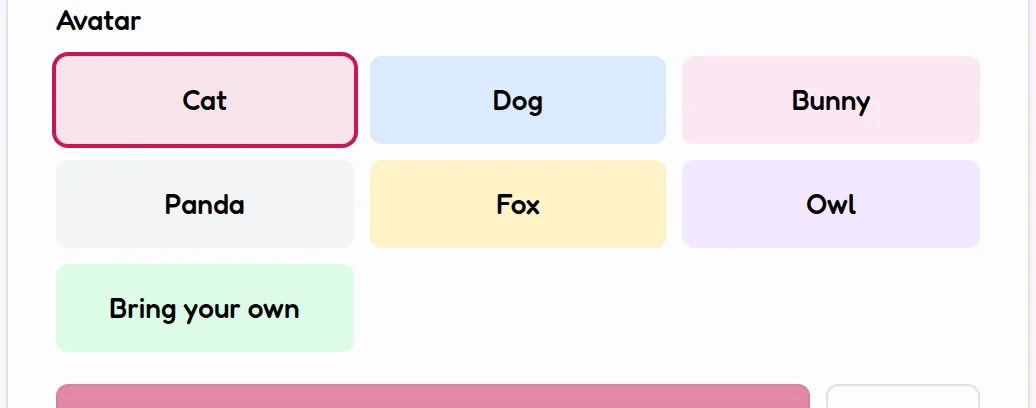
Six friendly animals — or Bring your own photo. Let them choose. -
Tap Create Profile. Done. Their card now appears on the profile screen.
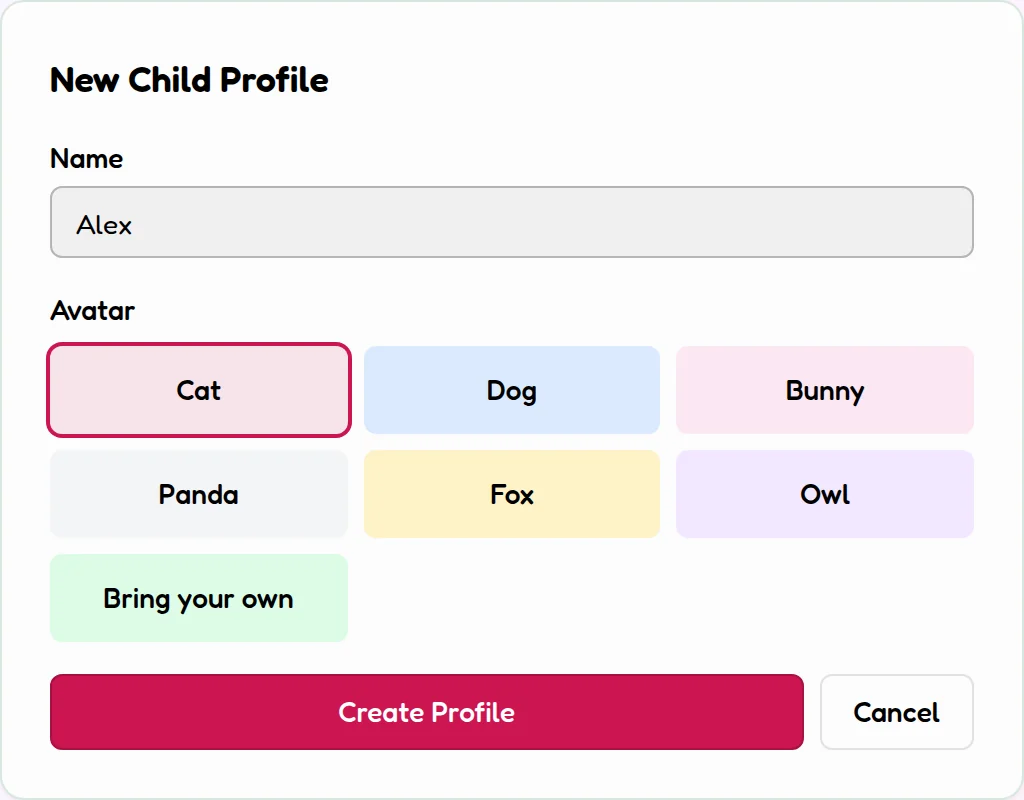
Name in, avatar picked — Create Profile and their card appears.
💡 Parent tip
Do the account setup alone, then bring your child in just for the avatar. Fast for you, exciting for them.
The first time your child opens their profile
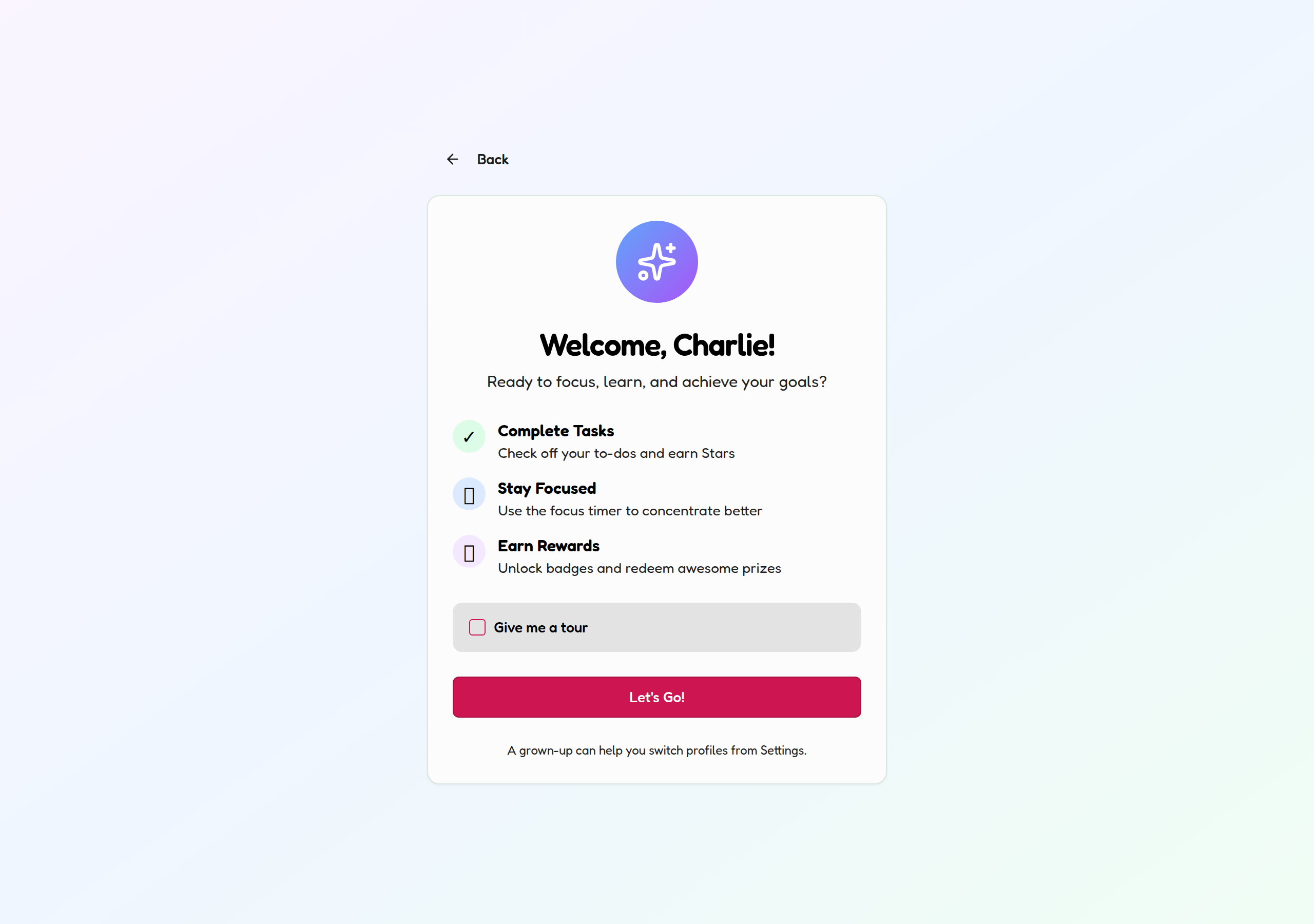
Tap their card ("Tap to enter as…") and they'll see a friendly welcome screen — what the app does, in three lines, with an optional tour. One tap on Let's Go! and they're in.
Good to know
- Profile style — Auto, Kid or Teen: each child card has a style toggle. Leave it on Auto and KidsFocus picks by age, or set it yourself. Kid style earns stars with a playful interface; Teen style earns XP and levels with a more grown-up look.
- Switching profiles: every screen has a switch button in the top corner — no password needed to move between profiles on a shared family device. (You can add a 4-digit Parent PIN in Settings → Parent PIN if little fingers get curious.)
- Multiple kids: add as many child profiles as your plan allows (Free: 1, Premium: 3, Family: unlimited). Each child gets their own tasks, Stars and rewards.
- Removing a profile: the little bin icon on a child's card deletes their profile — use carefully, it also removes their Stars history.
✅ You're ready
Next stop: give them something to do. The Quick-Start Routines build a whole morning routine in one tap.