
Tasks are the engine of KidsFocus. Your child checks them off, you approve them, they earn Stars, and those Stars turn into rewards. The Tasks tab on your Parent Dashboard handles all of it.
Pending Approvals: your daily two-tap win
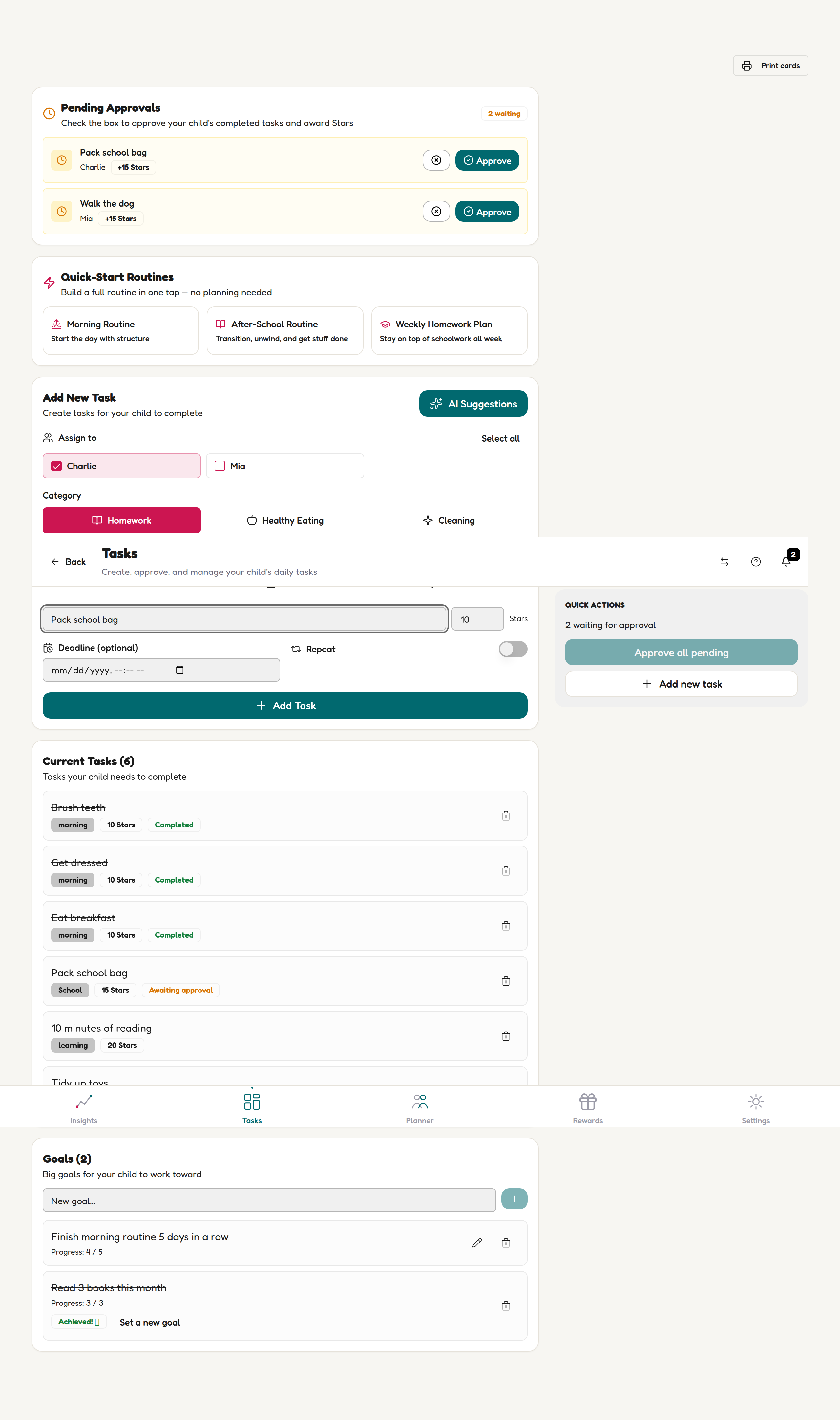
Right at the top you'll see Pending Approvals — tasks your child has marked done that are waiting for your tick. Check what they did, then tap Approve to award the Stars (or Reject with a quiet word at dinner). In a rush? Approve all pending in the Quick Actions panel clears the lot.
The fast way: Quick-Start Routines
Below approvals sit three ready-made routines, built from what actually works for ADHD families:
- Morning Routine — start the day with structure (wake up, brush teeth, get dressed, breakfast, pack the bag)
- After-School Routine — transition, unwind, and get stuff done
- Weekly Homework Plan — stay on top of schoolwork all week
One tap adds the whole routine to your child's list. Edit or delete any task afterwards — it's a starting point, not a straitjacket.
The custom way: Add New Task
-
Choose who it's for. Tick one child, several, or Select all — one task can land on every sibling's list at once.

Tick one child, several, or Select all for the whole crew. -
Pick a category. Nine built-in pills: Homework, Healthy Eating, Cleaning, Organising, Morning Routine, Bedtime Routine, School, Home and Health. Categories keep your child's list organised.
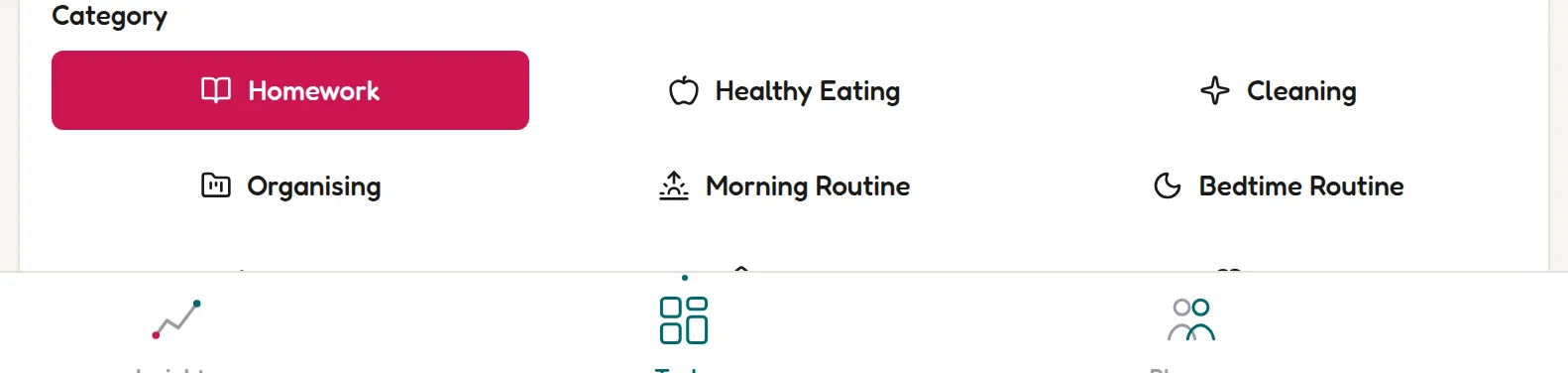
Nine built-in categories keep every list organised. -
Name the task. Short and action-first works best: "Pack school bag", not "School bag packing".

Short and action-first: "Pack school bag". -
Set the Stars. Ten is the default (you can go from 1 to 100). Bigger effort, bigger Stars — your call.

Ten is the default — scale up for bigger effort. -
Optional extras: add a Deadline for time-bound tasks, or flip the Repeat switch for daily habits so you never re-enter them.

Deadline for one-offs, Repeat for daily habits. -
Tap Add Task. It appears in the Current Tasks list below the form — and on your child's screen — straight away. Each task in that list has a delete icon if you need to retire it.
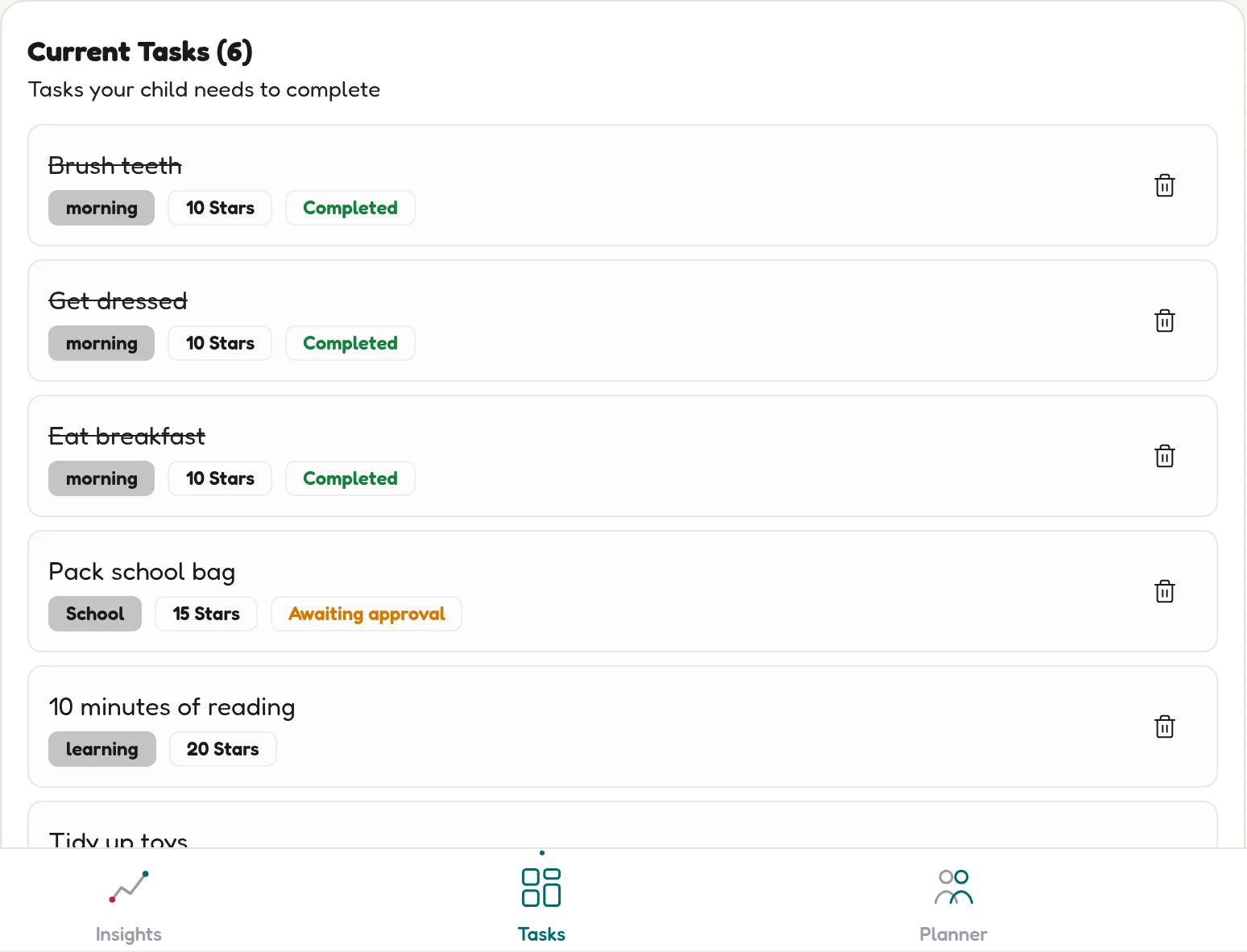
New tasks land in Current Tasks — and on your child's screen — instantly.
✨ Stuck for ideas?
Tap AI Suggestions and KidsFocus will propose age-appropriate tasks for your child. Accept the ones you like, ignore the rest.
Getting the Stars right
Stars are how your child "buys" rewards, so keep the maths motivating:
- 10 Stars — quick daily habits (brush teeth, get dressed)
- 15–20 Stars — real effort (pack the bag unaided, 10 minutes of reading)
- 25+ Stars — the hard stuff (homework without being asked)
💡 ADHD parent tip
Start with three tasks, not ten. A short list your child finishes beats a long list that defeats them. Add more once the streak habit forms.