
KidsFocus rewards are custom — you decide what's on offer, because you know what motivates your child better than any app ever could. Screen time, choosing the movie on Friday, a trip to the park, an ice cream. Small, real, and soon.
Create your first reward
-
Open the Rewards tab on your Parent Dashboard — it's the one labelled "Approve rewards and manage redemptions".
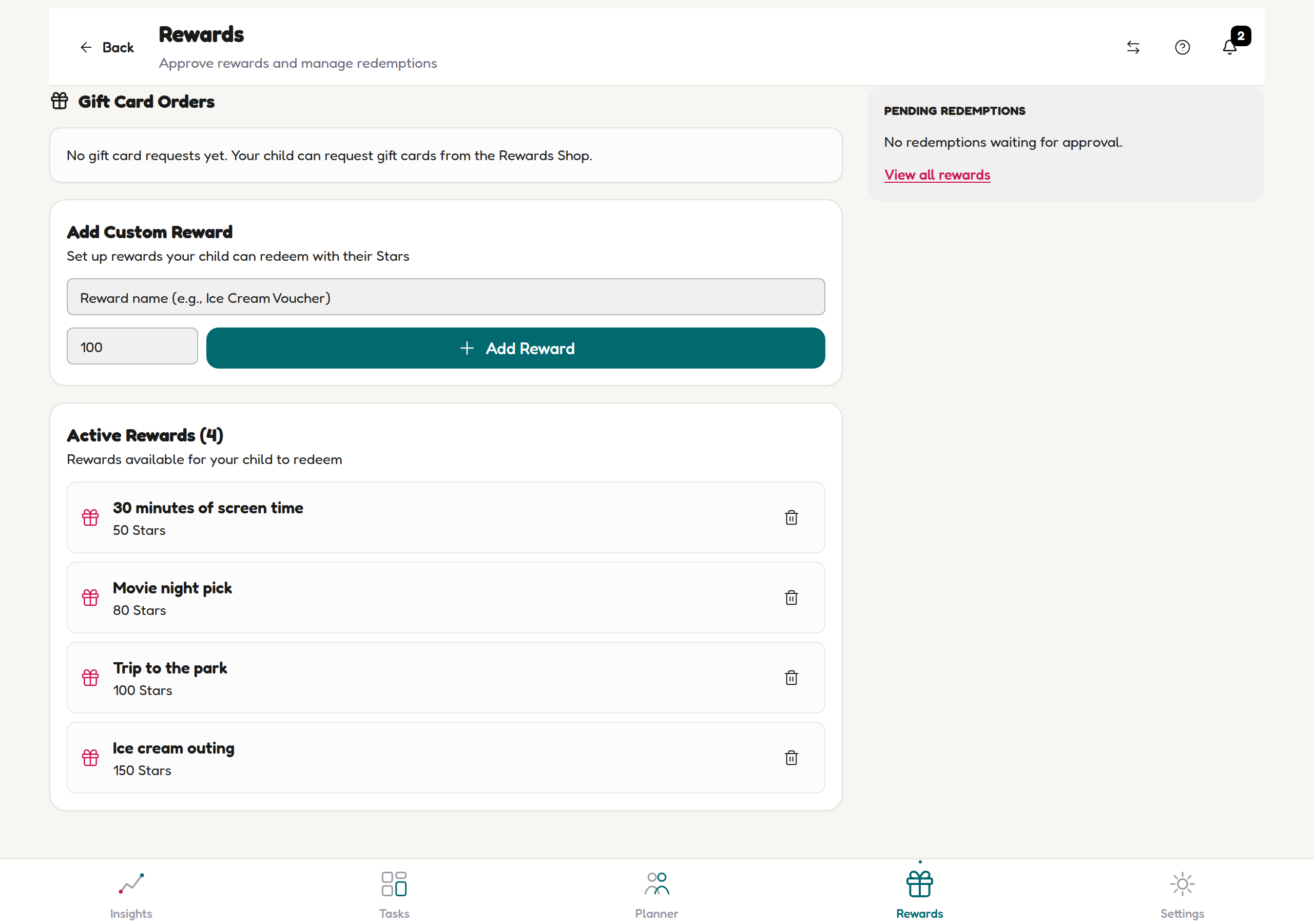
The parent Rewards tab: creation form up top, Active Rewards below, Pending Redemptions on the side. -
Find Add Custom Reward — two fields and a button, deliberately simple.

Two fields and a button — deliberately simple. -
Name it like a treat: "30 minutes of screen time", "Movie night pick", "Ice cream outing".

Name it like a treat, not a chore. -
Set the Stars cost — 100 is the default starting point; go lower for everyday treats.
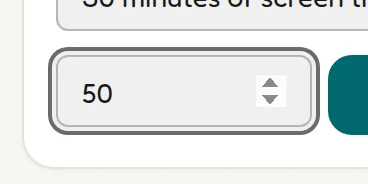
100 is the default — go lower for everyday treats. -
Tap Add Reward. It joins the Active Rewards list and appears in your child's Rewards Shop instantly.
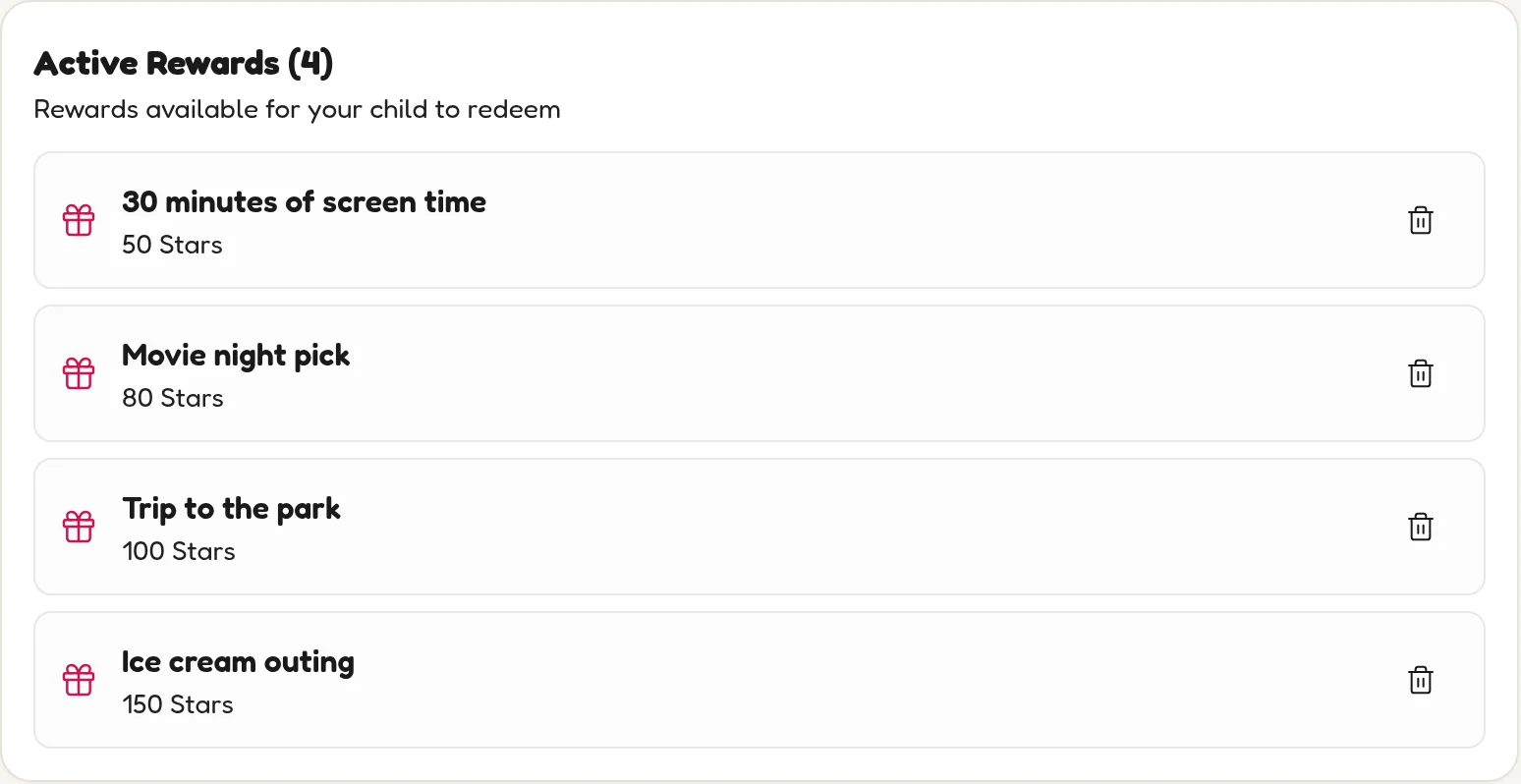
New rewards join Active Rewards — and the shop — instantly.
Pricing guide (from the demo family)
- 50 Stars — 30 minutes of screen time. Cheap and frequent. A same-day win.
- 80 Stars — Movie night pick. A couple of good days of tasks.
- 100 Stars — Trip to the park. A solid week's effort.
- 150 Stars — Ice cream outing. The big one. Worth saving for.
💡 Why this mix works
ADHD brains need near-term rewards — something affordable within a day or two — plus one or two bigger goals that teach saving. Always have at least one reward under 60 Stars.
Keeping it fresh
- Watch Pending Redemptions. When your child hits Redeem, the request lands in the Pending Redemptions panel for you to action — that's your queue to make good on the prize.
- Retire stale rewards with the bin icon on any Active Reward. If they haven't chased it in a month, it's clutter — delete and add a fresh one.
- Ask your kid. A reward they chose is worth twice its Stars. Let them request the next one.
🎟 Gift cards
Older kids can request gift cards from the Rewards Shop — those requests land in Gift Card Orders at the top of this screen for you to approve.